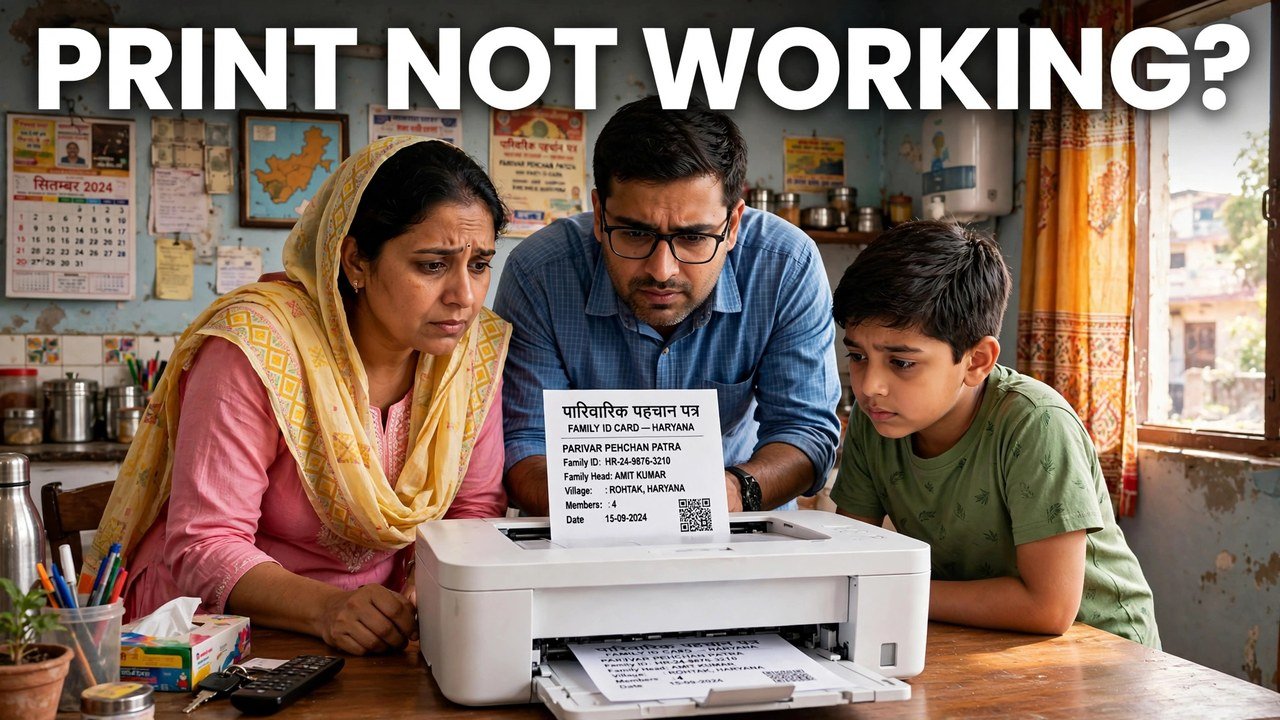
Family ID Print Not Working? How to Print Your PPP Correctly
If Print PPP opens but the paper that comes out is blank, cut off, or missing a family member, the problem is usually in the print moment itself, not in your Family ID. The reliable fix is unglamorous: open your record again on the official Mera Parivar portal, go to Citizen Corner and Update Family Details, authenticate with the OTP sent to the Head of Family mobile on record, wait until the Print PPP view has loaded completely with every member visible, and only then print — and check the finished page before you leave the portal. This guide stays on that one job: a correct print.
A print taken too early, from a half-loaded screen, can look official while quietly dropping the last lines of the record. Two extra minutes at the preview stage prevent a wasted trip with an incomplete copy.
What a Correct Print Should Show
Judge the paper against the record, not against how tidy it looks.
A correct print is simply the final Print PPP view on paper: the family’s 8-digit Family ID readable in full, the Head of Family and every member who appears on the on-screen member list present on the page, and no line cut off at the edge or missing at the bottom. If the screen list and the paper list do not match, the print has failed even if the printer worked perfectly — the answer is to return to the full final view and print again, not to accept the shorter copy.
That comparison matters because the copy is normally being made for an office, a school or a scheme counter. The person receiving it reads the printed record, not your explanation of what was on the screen.
Getting to the Print Screen the Official Way
Printing has to start from the real record. Shortcuts taken earlier show up as faults later.
Open the official Mera Parivar portal, go to Citizen Corner and Update Family Details, and open your record with your Family ID or Aadhaar. Complete the OTP sent to the Head of Family mobile, wait for the Print PPP view, and print from there. For the full download process, see Download Haryana Family ID.
The Print Itself: Three Checks That Prevent Most Failures
First, wait for the final view to finish loading. After you select Print PPP, let the complete final Family ID view appear. Printing while the page is still loading is the simplest route to a blank or partial page. If the view stays incomplete, go back one step and open Print PPP again rather than printing what is in front of you.
Second, read the preview before confirming. Where your browser or printer shows a preview, use it. Look specifically for the bottom of the page and the right-hand edge — the places where a name or the ID number is most easily clipped. If the preview already looks cropped, do not print it and hope; return to the full view and try the print again.
Third, inspect the paper while the portal is still open. Compare it line by line with the screen: ID number complete, every member present, nothing faded beyond reading. If it fails, reprint straight away while you are still authenticated. Closing everything and discovering the fault at a counter turns a two-minute reprint into a second full OTP session.
These are practical checks on the output, not new portal rules — the portal’s part of the job is to display the final record; the printer’s part is to reproduce all of it.
When Printing Still Will Not Work at Home
The record opens but Print PPP never completes. Try opening the final view once more on the same official portal. If the household computer or printer keeps defeating you, the record itself is not at fault — take the print from the assisted route below rather than from an unofficial shop’s saved copy of someone else’s process.
The page prints but one member is missing on screen as well. Stop printing. A member absent from the on-screen list is absent from the record, and no printer setting will restore them. That family record needs the official update route for that member first; only then is a fresh print worth making.
You cannot complete the OTP step at all. The self-service print depends on authentication to the Head of Family mobile on record. If that number is no longer available, do not look for a way around the OTP — use the counter route, where the same record can be opened through official assisted channels.
Use a counter for the print itself when home printing fails. Citizens can update or verify family information at an Atal Seva Kendra or SARAL Kendra, and assisted PPP help is available through a CSC, SARAL Kendra or PPP Operator. Ask the operator to open your record, show you the member list on screen, and print the final view while you watch, then check that printed page before leaving.
If what you actually need is a file on your phone rather than paper, that is covered in a separate guide on this site; this article ends once a complete paper print is in your hand.
Source: Mera Parivar / PPP portal, Government of Haryana; Citizen Resource Information Department, Government of Haryana — About Parivar Pehchan Patra; and National Informatics Centre, Haryana (Government of India) official page on Parivar Pehchan Patra (October 2024).
Conclusion
A failed Family ID print is rarely a failed Family ID. Work from the official record — Update Family Details, Head of Family OTP, full member list counted on screen — then slow down at the print moment: full final view loaded, preview checked at the edges, and the finished paper compared against the screen before the portal is closed. If the record itself is missing someone, correct the record first; if home equipment or the stored mobile blocks you, let an Atal Seva Kendra, SARAL Kendra, CSC or PPP Operator produce the print through the official route and check it at the counter.
FAQs
1. My printout is blank even though the record opened. Should I apply for a new Family ID? No. A blank page is a print-output problem, not a reason to enrol again — one household holds one record. Go back to Print PPP, wait for the final view to load completely, check the preview, and print again while you are still authenticated.
2. The last member of my family is cut off at the bottom of the printed page. Is that copy usable? Treat it as incomplete. The printed copy should show every member who appears on the on-screen list. Return to the full Print PPP view, confirm the preview shows the whole page, and reprint, checking the bottom of the new copy before you close the portal.
3. A family member is missing from the screen list, not just from the paper. Will reprinting fix it? No. Reprinting only reproduces the record as it stands. A member missing on screen is missing from the record itself and needs the official update route for that member first; print a fresh copy only after the record shows the complete list.
4. Can a local printing shop open my record and print it for me? Do not hand your Aadhaar or OTP to an unofficial service for this. Printing requires OTP authentication to the Head of Family mobile, and the safe assisted channels named in official information are the CSC, SARAL Kendra, Atal Seva Kendra and PPP Operator counters.
5. Do I need to sign this printout and upload it back to the portal? Not for a simple copy for your own use or to show an office. A print, sign and re-upload step belongs to the update process after a change is made to the record, which is a different procedure from printing the final Family ID view explained here.
