How to Download Family ID PDF on Mobile: Full Process and Official Link
You do not need a computer to get your Family ID as a PDF. The same official Mera Parivar portal that opens on a desktop also opens in a phone browser, and a phone can finish the whole job: open meraparivar.haryana.gov.in on the mobile, go to Citizen Corner and Update Family Details, open your family record with the OTP sent to the Head of Family mobile on record, tap Print PPP, and save that final view as a PDF from the browser’s print option. The file you keep on the phone — not a paper printout — is the endpoint of this guide.
Two warnings before the taps begin. First, the official sources for PPP name the portal, not a mobile app, so do not install a lookalike app that promises a Family ID download. Second, have the Head of Family phone within reach, because the OTP step cannot be completed without it.
No App, Just Your Phone Browser
Families often search an app store first and land on unofficial apps that ask for Aadhaar numbers and OTPs. That search is unnecessary and risky.
The process in the official citizen information is a website process: the Update Family Details tab on the Mera Parivar portal. A modern phone browser displays that portal well enough to complete it. You sign in to nothing new, you create no new account, and you pay nothing — you are simply using a smaller screen for the same official record.
If you read a guide to downloading with Aadhaar on any device, that is a separate article on this site; here the focus stays on what changes when the screen in your hand is a phone.
Set the Phone Up Before You Open the Record
Three small preparations save a restart in the middle of the OTP step:
- Charge and connection. Keep enough battery and a steady mobile data or Wi-Fi connection. If the browser reloads while the portal is opening the record, you may have to request a fresh OTP.
- Free space. A one-card PDF is small, but a phone with no free storage can fail to save it. Clear a little space first.
- The Head of Family handset nearby. Self-service authentication sends the OTP to the mobile number of the Head of Family stored in PPP. You can browse on your own phone, but the code arrives on that stored number.
Keep the phone in portrait for reading names, and turn it sideways only if the final print view feels cramped — either way, check the saved file at the end rather than trusting the small preview.
From Portal to PDF, Tap by Tap
Work through these taps in order and let each screen load fully before moving on.
Step 1 — Type the official address yourself. Open your phone browser and enter meraparivar.haryana.gov.in. Do not start from a link forwarded in a message.
Step 2 — Open Citizen Corner, then Update Family Details. This tab is the entry the official citizen information names for self-service access to a family record.
Step 3 — Open your family record. Enter the 8-digit Family ID if you have it. If you do not, choose the No option and search with Aadhaar instead. This guide does not repeat that search in detail; either route ends at the same record.
Step 4 — Enter the OTP. Type the code received on the Head of Family mobile stored in PPP. The member list opens only after this authentication.
Step 5 — Read the member list on the small screen. Scroll slowly through every name. On a phone it is easy to miss the last member below the fold. If a name or detail is wrong, stop here — a PDF made now will carry the same error, and the record itself needs correction first.
Step 6 — Tap Print PPP. The final Family ID view appears. Wait until it has loaded completely; a half-loaded view can save as a blank or cut-off page.
Step 7 — Save as PDF from the browser print option. Open the browser menu, choose Print or Share and then Print, set the destination to Save as PDF where your browser offers it, and save. This save step belongs to your phone browser — the portal’s job was to show the final Print PPP view, and the browser turns that view into the file.
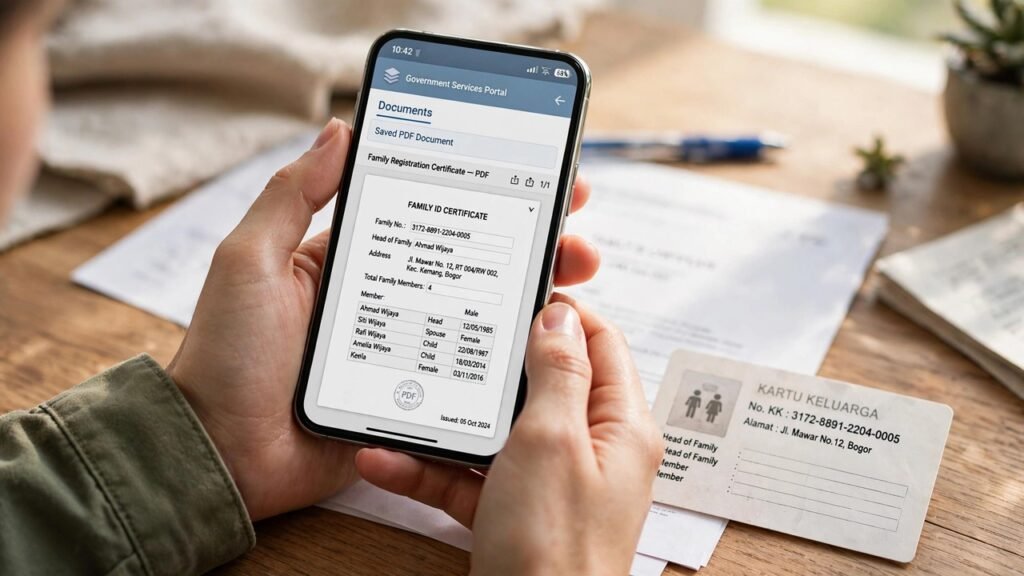
Finding and Checking the Saved File
After saving, leave the portal and open the file from your phone’s Downloads or Files area, or from the browser’s download list. Then check it like you would check a paper card:
- the 8-digit Family ID is fully readable and not cut at an edge,
- the Head of Family name and every member name are present,
- no page is blank and no line is missing.
Rename the file to something the family will recognise, such as your family name with Family ID, so it is not lost among random downloads. Keep one copy on the phone and, if you can, one backup copy in a place a family member you trust can reach. Do not send the PDF or your OTP to strangers or to any unofficial service that offers to store it for you.
When the Phone Route Stops Halfway
The portal will not open. Check the address spelling and your connection, then try again. The portal itself returned an error on a direct check during the writing of this article, yet it remains the only official address — waiting and retrying the same official site is safer than switching to a similar-looking one.
The OTP does not reach the phone in your hand. It is not meant to. The code goes to the Head of Family number on the PPP record. If that number has changed, the mobile route cannot be completed at home; that record problem belongs to the assisted route below.
The saved PDF is blank or incomplete. Go back to Print PPP, wait for the full view to load, and save once more. Do not screenshot the screen as a substitute — a cropped screenshot can lose the ID number or a member name that an office needs to read.
You cannot finish on the phone at all. Use the official assisted channels. Citizens can update or verify family information at an Atal Seva Kendra or SARAL Kendra, and assisted PPP help is also available through a CSC, SARAL Kendra or PPP Operator. Ask the counter to open the same record and print the Family ID for you.
Source: Mera Parivar / PPP portal, Government of Haryana; Citizen Resource Information Department, Government of Haryana — About Parivar Pehchan Patra; and National Informatics Centre, Haryana (Government of India) official page on Parivar Pehchan Patra (October 2024).
Also read: download Haryana Family ID | Family ID print not working — how to print correctly
Conclusion
A phone is enough for this job, provided it is used the official way: browser, not an unofficial app; the Mera Parivar address typed by hand; Citizen Corner and Update Family Details; the record opened with the Head of Family OTP; the member list read in full on the small screen; and Print PPP saved as a PDF through the browser, then opened once to prove the file is complete. Families who finish with that last check hold a card they can actually use — and know the Atal Seva Kendra, SARAL Kendra, CSC and PPP Operator counters are the fallback when the stored mobile number or the record itself blocks the mobile route.
FAQs
1. Is there an official PPP app I should download for the PDF?
No app is named in the official sources used for this article. The official route they name is the Mera Parivar portal, which opens in a phone browser. Avoid unofficial apps that ask for your Aadhaar or OTP in exchange for a download.
2. Where does the PDF go after I save it on my phone?
It goes where your phone browser saves print files — usually the Downloads area, which you can open from the browser’s download list or the phone’s Files area. Open it once straight after saving, confirm the full card is readable, and rename it so the family can find it again.
3. I am browsing on my own phone, but I am not the Head of Family. Can I still finish?
You can browse on any phone, but the OTP is sent to the mobile number of the Head of Family stored in PPP. That phone must be available to read the code from; without it, the record will not open and the PDF cannot be made.
4. My saved PDF shows only part of the card. What went wrong?
Most likely the Print PPP view had not loaded fully, or the preview was saved while zoomed or turned. Return to Print PPP, wait for the complete final view, and use Save as PDF again. Check the new file before closing the portal, and delete the faulty partial copy so it is not used by mistake.
5. Do I need to print the PDF on paper as well?
Not for the download itself to be complete — the saved PDF is the print view of your stored Family ID record. Keep a paper copy at home too if your family prefers one, and take whichever copy an office asks to see; if any detail on it is wrong, correct the record first rather than editing the file.
