Download Haryana Family ID. If you have successfully registered for the download of Haryana Family ID (Parivar Pehchan Patra – PPP), the next step is to download your Family ID for future use. This document serves as an important proof of your family’s registered information and is often required when applying for various government services and welfare schemes in Haryana.
In this guide, you’ll learn how to download your Haryana Family ID online quickly and easily. We have explained each step in simple language, making it easy for anyone to follow. Whether you need the Family ID for scholarships, pension schemes, ration card services, or other government benefits, this guide will help you access and download your document without any difficulty.
Important: Always use the official PPP Haryana website for this process. Never share your login details, OTP, or Family ID password with anyone claiming to help you “faster.”
Before you begin, it helps to know exactly where to go. There are two main links you should keep handy:
| Purpose | Link |
| Official Website | https://meraparivar.haryana.gov.in/ |
| Citizen Corner (for download) | https://ppp-office.haryana.gov.in/ |
The Citizen Corner is where the actual login and download process happens, so that’s the one you’ll be using most.
Here’s the complete process broken down into easy steps.
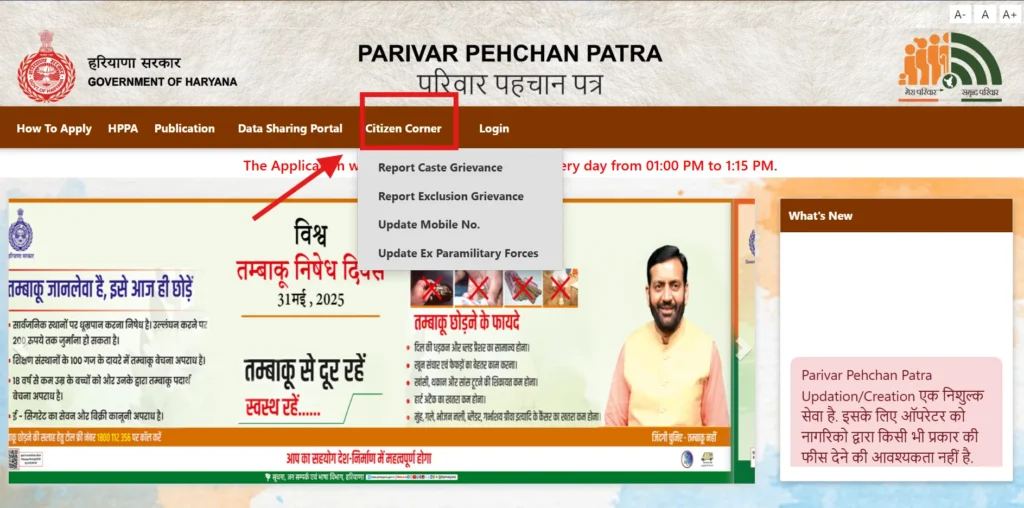
Step 1: Visit the Official Portal
Open the Citizen Corner page on the official PPP Haryana website. Make sure the web address matches the one shared above, since fake websites sometimes try to copy the design of government portals.
Step 2: Login to Your Account
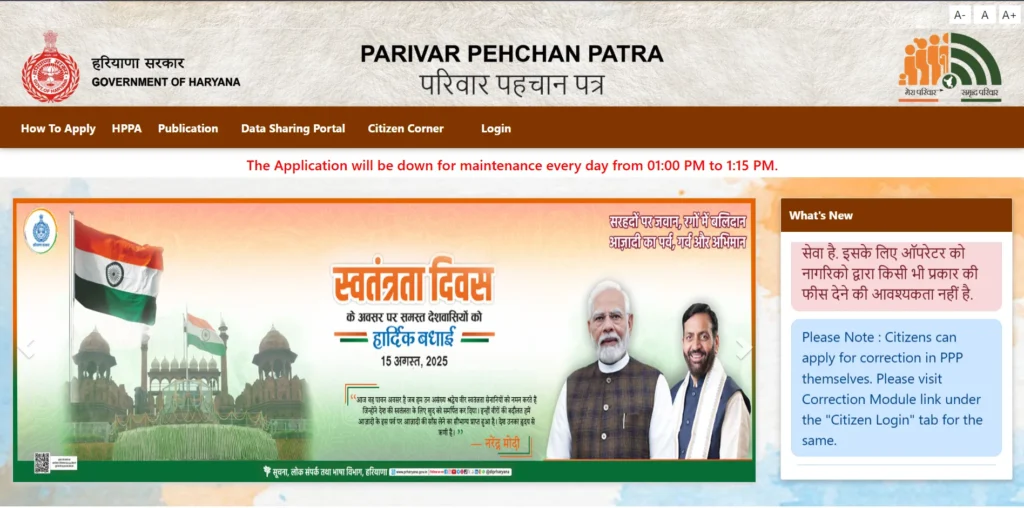
Enter your Family ID number. A temporary Family ID is issued to families who live outside Haryana but want to take benefits of Haryana government schemes. Families permanently living in Haryana get an 8-digit Family ID. Once entered, an OTP will be sent to your registered mobile number enter this OTP to verify your identity and log in securely.
Note: Not sure if your ID is permanent or temporary? A temporary Family ID is issued to families who live outside Haryana but want to take benefits of Haryana government schemes. Families permanently living in Haryana get an 8-digit Family ID. You can find this number on your registration confirmation or SMS.
Step 3: Navigate to the Download Section
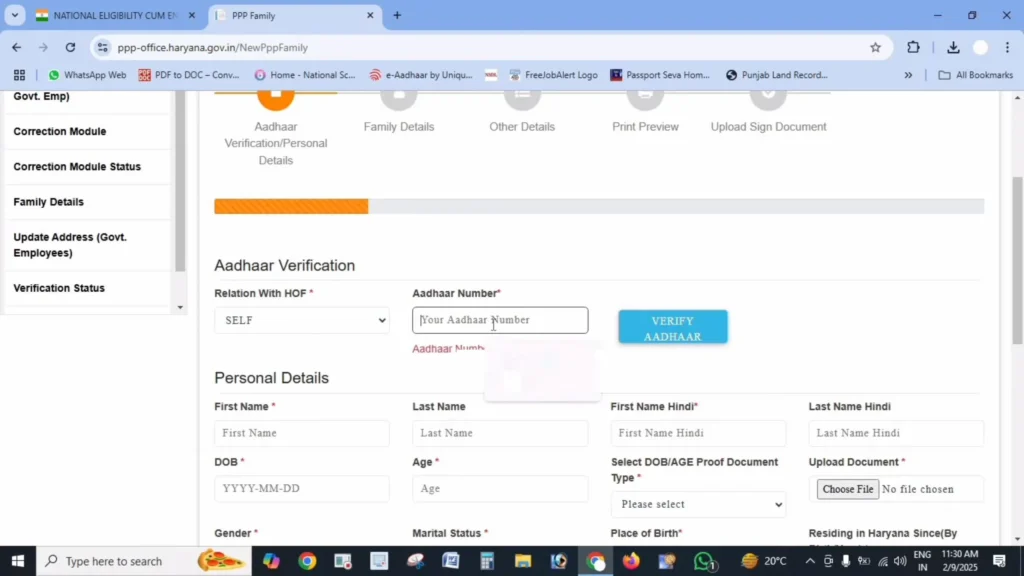
Once you’re inside your account, look for an option labeled “Print Form” or “Download Family ID” on your dashboard. This is usually placed in a clearly visible spot once your application is approved.
Step 4: Generate the PDF
Click the download button, and the system will generate a PDF copy of your Family ID card Status. This file contains all your family’s registered details.
Step 5: Save and Print
Save this PDF somewhere safe on your device — your downloads folder, a cloud drive, or even your email. Once saved, you can print it whenever needed.
Step 6: Verification (If Required)
Some government services may ask for a signed copy. In that case, print the form, sign it by hand, scan it (keeping the file size under 200 KB), and upload it back to the portal for final verification.
That’s it — this is the complete way to download Haryana Family ID from start to finish.
Even with a simple process, a few hiccups can happen. Here’s how to handle the most common ones.
Download option isn’t showing up: This usually means your application hasn’t been approved yet. If your status still shows “Processing” or “Pending,” you’ll need to wait for approval before the download button appears.
PDF won’t open: This is often a software issue rather than a portal issue. Install a PDF reader like Adobe Reader on your device and try again.
Trouble logging in: If your Family ID or password isn’t working, use the “Forgot ID/Password” option. A reset link or OTP will be sent to your registered mobile number.
Print quality looks poor: Download the PDF in the highest quality setting available, and when printing, select “Actual Size” instead of “Fit to Page” — this keeps the text and QR code sharp and readable.
Once you successfully download Haryana Family ID, keep these points in mind:
- It’s officially valid: The printed copy is recognized by Haryana government departments as an official document.
- You can print multiple copies: There’s no limit — download and print as many as your family needs.
- Keep a digital backup: Save a copy in your email or cloud storage so you’re never stuck without it.
- Only authorized members should download it: Ideally, the head of the family or an authorized member should handle this.
- Update it after changes: If any family details are updated later, download a fresh copy so your records stay current.
This ID isn’t just a formality — it plays a role in several everyday government processes, including:
- Applying for pensions, scholarships, and subsidy schemes
- Identity verification at government offices
- Accessing ration card–related services
- Applying for Ayushman Bharat health benefits
- Property-related documentation and services
Tip: Always carry an original ID proof, like your Aadhaar card, along with your printed Family ID when visiting any government office.
If you’re still stuck after trying the steps above, here are a few options:
- Visit your nearest Saral Kendra
- Contact the PPP Haryana helpline through your district office
- Use the help section available on the official portal itself
Related guides: Family ID download using Aadhaar | download Family ID PDF on mobile | download Family ID without the registered mobile number
Both are official, but they do different jobs. The Mera Parivar portal (meraparivar.haryana.gov.in) carries the general PPP information and services, while the actual login and Family ID download happen through Citizen Corner at ppp-office.haryana.gov.in.
A temporary Family ID is issued to families who live outside Haryana but want to take benefits of Haryana government schemes. Families permanently living in Haryana get an 8-digit Family ID. The download option appears once the application is approved and the permanent 8-digit ID is in place, so wait for the approval and then log in to download.
Download the PDF in the highest quality setting the portal offers, and in your printer settings choose “Actual Size” instead of “Fit to Page”. That keeps the text and the QR code sharp and readable.
It shows the old information, so it can create a mismatch when a department checks your record. Download a fresh copy after every update so the printout matches the current record.
Yes. Carry an original ID proof such as your Aadhaar card along with the printed Family ID when you visit a government office, in case the officer needs to verify your identity separately.
Being able to download Haryana Family ID quickly and correctly saves you a lot of time when applying for government schemes or services. The process itself is straightforward once you know the right steps — log in, verify with OTP, find the download option, and save your PDF. Just remember to always use the official portal, double-check your details after downloading, and keep both a digital and printed copy handy for whenever you need it.