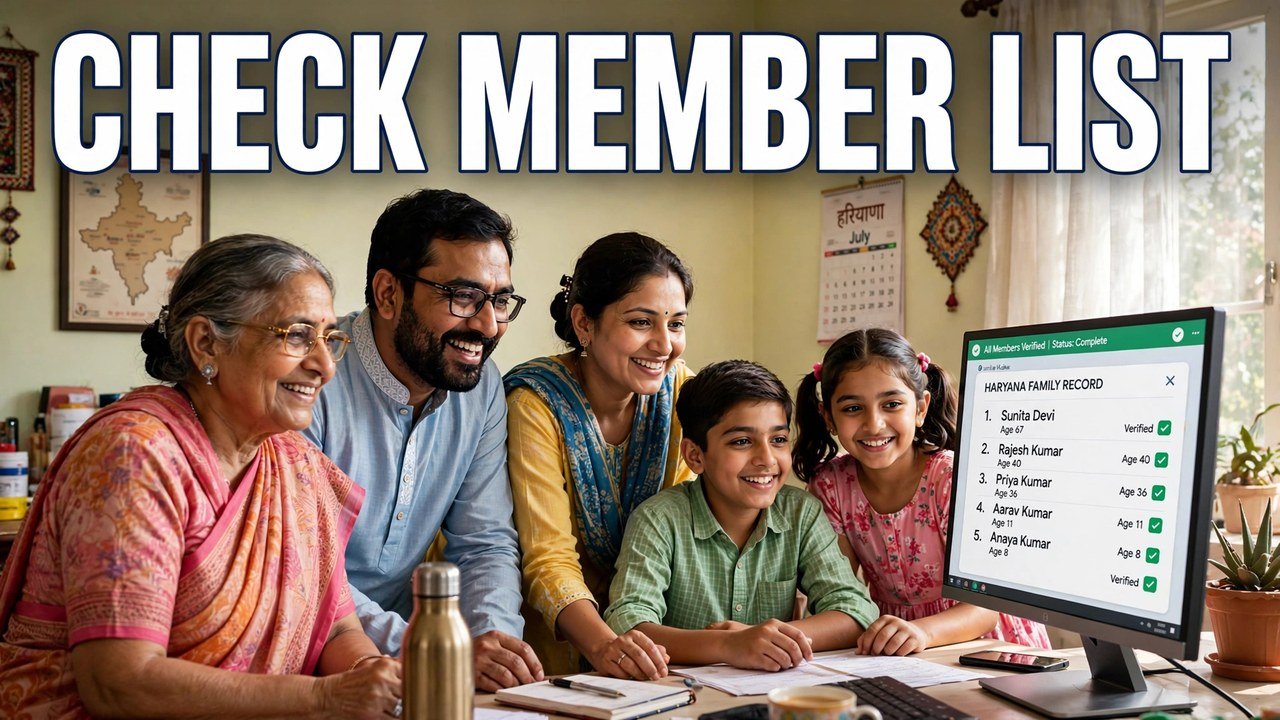
How to Check All Family Members in Your PPP ID: Full List Process
To check all family members in your PPP ID, open Update Family Details on the official Mera Parivar portal, enter your 8-digit Family ID — or use the Aadhaar route if you do not have the number — verify the OTP sent to the Head of Family mobile, and the data of every member registered under that Family ID appears on one screen. That member list, not the printed card alone, is the place to confirm who is actually recorded in your household. Read it name by name before you rely on it for any scheme, pension or ration work.
Many families only discover a missing child, a married daughter still shown at home, or a name spelt differently when a benefit is already delayed. A five-minute list check now is how you catch that while it is still just a record to correct, not a payment stopped.
The One Screen That Shows the Whole Household Together
Aadhaar belongs to one person. A Family ID belongs to one household, and the member list is where that difference becomes visible.
Once you are authenticated, PPP does not show you only the Head of Family. It shows the family as the record holds it: the head and the members registered under that same 8-digit ID, each with their own Member Details entry. That is the official picture departments work from when they look at your family as a unit — how many members there are, who they are, and how they are related in the record.
That is also why this check matters more than glancing at an old print kept in a file. A print shows what the record held on the day it was printed. The list you open after OTP today shows what the record holds now, after any enrolment, update or verification since then.
Opening the Full Member List, Step by Step
Use only the official portal for this. A member list contains the whole household’s record, so do not open it through a link sent by a stranger or a site that asks you to upload documents just to view names.
Step 1 — Go to the official portal. Open meraparivar.haryana.gov.in, go to Citizen Corner and choose Update Family Details.
Step 2 — Choose how you will find the family. If you know the 8-digit Family ID, choose Yes and enter it. If you do not know it, choose No and use the Aadhaar search — the Forgot Family ID route — with the Head of Family Aadhaar. There is no separate member-list search; this is the same authenticated entry that protects the record.
Step 3 — Verify the OTP. An OTP is sent to the mobile number of the Head of Family stored in the PPP database. Enter it in the same session. Without that handset the self-service list will not open; the assisted route at the end of this article is the official fallback, not a shortcut site.
Step 4 — Stop at the list before you click anything else. After the OTP is verified, the data of all family members registered under the Family ID appears. Stay on that screen first. Do not rush to Print PPP or to an edit button — the job of this visit is to read, not to change.
Step 5 — Work down the names one by one. Use the Member Details entry against a name when you need to see that person’s recorded details more closely. When you have read the whole list, you can close the session or, only if you also need a paper copy, move to Print PPP for the final view.

How to Read the List Once It Opens
Read the list against your household as it is today, not as it was when the ID was first made.
First, count. Does the number of names on screen match the number of people who should be in this family record today? A count that is one short or one extra is the clearest sign that an addition or a removal has not yet reached the record.
Second, identify the head. Confirm the person shown as Head of Family is the person your household and the record both treat as head, because the OTP, the authentication and much of the family’s official work run through that head’s mobile and identity.
Third, check each name as a separate person, not as a block. Look at the spelling of the name and the member’s place in the family — a correct name attached to the wrong member, or two members’ details crossed over, will not be spotted by counting alone. Open Member Details for any name that looks uncertain rather than guessing from the summary line.
Fourth, note anything that belongs to a different stage of life. A newborn who has joined the household, a daughter whose marriage has moved her to another family’s record, or a member who has died will not update themselves in your reading — the list simply shows whether those changes are already in the record or still pending as work. Write down exactly which name is affected and how, while the screen is in front of you; that note is what an operator or a correction visit will need later.
Member List and Printed Card: Not the Same Check
Families often ask why they should open the list if they already hold a printed PPP. The two views answer different questions.
The printed card, reached through Print PPP, is the final view of the Family ID for keeping and producing on paper. The member list you reach after OTP is the working record behind that print — the screen where each member appears separately, with a Member Details route for that person. If the print and the list ever seem to differ, trust the authenticated list as the current record and treat the old print as out of date, because a print cannot change after it is taken, while the record can.
In short: use Print PPP when you need the document; use the member list when you need the truth about who is in the family today.
If a Name Is Missing, Extra or Wrong
Do not try to fix the list inside this check, and do not pay anyone who offers to edit names on the spot outside the official system.
A missing, extra or wrongly recorded name is correction or membership work on the official portal or at an assisted counter, and it ends with the print, sign and upload step that completes a PPP update — that final step is explained in the print, sign and upload guide — while this article stays on viewing the list only.
What you should do in this visit is smaller and important: record the exact name affected, whether it is missing, extra or incorrect, and which detail looks wrong. That precise note prevents a vague request at a counter and prevents you from editing a correct member’s details by mistake.
When You Cannot Open the List at Home
If the Head of Family mobile that holds the OTP is not available, or you cannot complete the portal steps at home, use the assisted route instead of searching for another website.
In assisted mode, a CSC, SARAL Kendra or PPP Operator can work on the record on the citizen’s behalf, and citizens can also update or verify family information at an Atal Seva Kendra or SARAL Kendra. Take the Head of Family and Aadhaar where possible, state the request narrowly — you want to see the complete member list under your Family ID — and read the list at the counter before you leave. Enrolment through the official channels is described with no fee, and viewing your own record should not become a paid favour to an unofficial agent. Never share your OTP with a stranger who promises to send you your member list on a messaging app.
Source: Haryana Parivar Pehchan Authority / Mera Parivar portal, Government of Haryana; Citizen Resource Information Department, Government of Haryana — About Parivar Pehchan Patra; and National Informatics Centre, Haryana (Government of India) official page on Parivar Pehchan Patra (October 2024).
Conclusion
Checking all family members in your PPP ID is a reading task with one official door: Update Family Details on the Mera Parivar portal, authentication by the OTP sent to the Head of Family mobile stored in PPP, and then the complete member list for that 8-digit Family ID on one screen. Count the names, confirm the head, read each member separately through Member Details where needed, and compare the list with your household as it stands today — not with an old print. If something is missing or extra, note it exactly and use the official correction route; if you cannot open the list at home, let a CSC, SARAL Kendra or PPP Operator counter open it with you. Five careful minutes on that list can save months of explaining a benefit that went to the wrong family picture.
FAQs
1. Can I check the full member list without the Head of Family OTP? No, not in the self-service flow described in the official information. After you find the family by its 8-digit ID or by Aadhaar, authentication is by an OTP sent to the Head of Family mobile number stored in PPP. If that mobile is not available to you, use the assisted CSC, SARAL Kendra or PPP Operator route.
2. I only have an old printed Family ID. Is that enough to know who is in my record now? No. A print shows the record on the day it was printed. Open the member list after OTP to see the record as it stands today, because updates and verification after that print will not appear on the old paper.
3. What should I click to see one member’s details more closely in the list? Use the Member Details entry shown against that member’s name in the authenticated family data. That is the route to look at that person’s recorded details without changing anything in this viewing visit.
4. Our family count on screen is one less than our household. What does that mean? It means the member list as recorded does not yet include one person who should be in this family record. Note the exact missing name and use the official add-member / correction route or an assisted counter — do not create a second Family ID for the same household.
5. Can a SARAL Kendra show me the member list if I cannot open it on my phone? Yes, assisted help is an official mode. A CSC, SARAL Kendra or PPP Operator can work on the record on the citizen’s behalf, and family information can also be verified at an Atal Seva Kendra or SARAL Kendra. Take the Head of Family with Aadhaar where possible and read the full list before leaving the counter.
