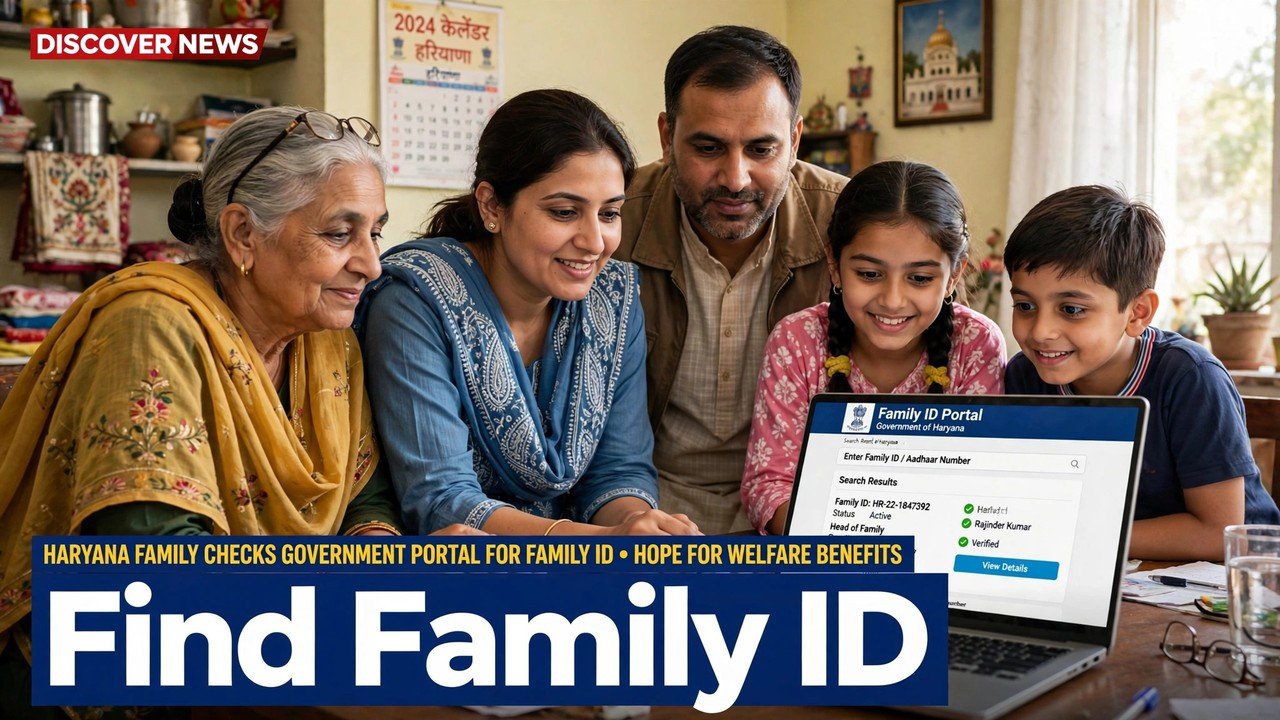
Aadhaar Number Se Family ID Kaise Nikale? Use Only the Official Website
If a form is asking for your Family ID and the number is not written down anywhere at home, your Aadhaar can still lead you to it — but only in one place. On the official Mera Parivar portal, open Citizen Corner and Update Family Details, choose the No option when asked whether you know the Family ID, search with the Aadhaar number, complete the OTP sent to the Head of Family mobile on record, and the family record opens with its 8-digit Family ID visible on screen. Finding and viewing that number is the only job of this guide.
Any other website, app or video that promises to show your Family ID from an Aadhaar number is not the official route. The search described in the official citizen information lives on meraparivar.haryana.gov.in alone, and that is where this article stays from the first step to the last.
Which Aadhaar Number to Use for the Search
Not every Aadhaar in the house is equally useful here, so pause before typing.
The Aadhaar search is meant to locate the family’s single PPP record. Use an Aadhaar number that belongs to a member of that same family record — in practice the Head of Family’s Aadhaar is the safest choice, because the authentication that follows is also tied to the Head of Family: the OTP goes to the mobile number of the Head of Family stored in PPP. Searching with the Aadhaar of a person who is not on your family record will not open your record, however correctly you type it.
Keep both things ready before you begin: the Aadhaar number you will search with, and the Head of Family handset that will receive the OTP. Having the first without the second leaves the search unfinished, because the record does not open until the OTP step is completed.
Finding the ID, Step by Step
Step 1 — Type the official address yourself. Open meraparivar.haryana.gov.in in your browser. Do not follow a forwarded link or a similar-looking address; a search that asks for Aadhaar deserves extra care about where the number is being typed.
Step 2 — Open Citizen Corner, then Update Family Details. This tab is the self-service entry named in the official citizen information for reaching a family record.
Step 3 — Choose the No option. The portal first asks, in effect, whether you know the Family ID. Answering No is what switches the search from the ID number to Aadhaar.
Step 4 — Enter the Aadhaar number and search. Type the number carefully and submit the search. A single wrong digit searches for a different person and finds nothing — if the search fails, re-check the digits before assuming the family was never enrolled.
Step 5 — Complete the OTP authentication. Enter the OTP sent to the mobile number of the Head of Family stored in PPP. Only after this step does the record open.
Step 6 — Read the Family ID where the record opens. With authentication complete, the family’s member list appears under its Family ID. Note the full 8-digit number for a permanent Haryana family exactly as shown — that viewed number, confirmed against the member list below it, is the result of the search.
How to Be Sure the Record You Found Is Yours
An Aadhaar search that opens a record is not finished until you have checked whose record it is.
Read the member list, not just the number at the top. Your own household should be there: the Head of Family you expected, and the members who live in that family unit. One household holds one record under one Family ID in PPP, so the names are the proof that the number belongs to you. If the list shows a different family, do not use that number on any form — close the session and search again with the correct family member’s Aadhaar.
Write the verified number down once, in a place the family keeps its important papers, and keep the writing legible: a mis-copied digit creates the same problem next month that the search just solved. There is no need to repeat the search every time a scheme asks for the number once you have a correctly copied, member-checked note of it.
If what you need next is the printed card itself rather than the number, a separate download guide on this site covers that step; here the work ends once the correct ID has been found and viewed.
When the Aadhaar Search Finds Nothing
The search returns no record. First, re-enter the Aadhaar digits slowly — most failed searches are typing failures. If the digits are right and still nothing opens, the family may not be enrolled in PPP yet, and a search cannot find a record that was never created. Enrolment is done through a CSC, SARAL Kendra or PPP Operator, with no fee charged to the citizen.
The record belongs to another family unit. A person who has married, split into a separate household or been moved to another family’s record will be found under that record, not the old one. Search with an Aadhaar of a member of the household you are actually looking for.
The OTP cannot be completed. The code goes only to the Head of Family mobile stored in PPP. If that handset or number is no longer available, the self-service search stops there by design — it is an authentication wall, not a fault. Do not look for a site that offers to skip it.
Use the assisted route when self-service stops. Citizens can update or verify family information at an Atal Seva Kendra or SARAL Kendra, and assisted PPP help is available through a CSC, SARAL Kendra or PPP Operator. Ask the operator to search for the same record and show you the Family ID and member list on screen, then check the names yourself before noting the number.
Source: Mera Parivar / PPP portal, Government of Haryana; Citizen Resource Information Department, Government of Haryana — About Parivar Pehchan Patra; and National Informatics Centre, Haryana (Government of India) official page on Parivar Pehchan Patra (October 2024).
Also read: forgot your Family ID number — recover your 8-digit PPP ID
Conclusion
Finding a Family ID by Aadhaar is a viewing task with a strict address: the official Mera Parivar portal, Citizen Corner, Update Family Details, the No option, an Aadhaar belonging to your own family record, and the OTP sent to the Head of Family mobile on record. When the member list opens, treat the names as the confirmation and the 8-digit number above them as the answer — copy it carefully, check it once, and keep it where the family can find it. If the search finds nothing or the OTP wall stops you, the Atal Seva Kendra, SARAL Kendra, CSC and PPP Operator counters are the official way forward, not any unofficial site asking for your Aadhaar.
FAQs
1. Can I find my Family ID with any family member’s Aadhaar, or only the Head of Family’s? The search looks for the family record the Aadhaar belongs to, so it must be the Aadhaar of a member of that record. The Head of Family’s Aadhaar is the practical choice because the OTP that follows also goes to the Head of Family mobile stored in PPP.
2. The search opened a record, but the members shown are not my household. What should I do? Do not use that Family ID. It means the Aadhaar you searched with sits on a different family record. Close the session and search again with the Aadhaar of a member of the household whose ID you need, then confirm the member list before noting the number.
3. Is there a charge for searching for the Family ID by Aadhaar on the portal? No fee is described for this self-service search in the official information, and PPP enrolment itself is recorded as free through the official channels. Anyone demanding payment simply to reveal your number on an unofficial site should not be given your Aadhaar or OTP.
4. My Aadhaar search finds no record at all. Does that mean my ID was cancelled? Not necessarily — and a failed search alone proves neither cancellation nor enrolment. After re-checking the digits, the likely explanations are that the family was never enrolled or that the Aadhaar sits on a different record. An Atal Seva Kendra, SARAL Kendra, CSC or PPP Operator can confirm the position on the official system.
5. I found the number on screen. Do I also have to download or print it for the search to count? No. Finding and viewing are complete once the correct record has opened and you have verified the member list and noted the 8-digit number accurately. Downloading or printing the card is a separate step, covered in its own guide, and is only needed when an office asks to see the card itself.
